Maruti Omni Mod Variant 2 V1.0
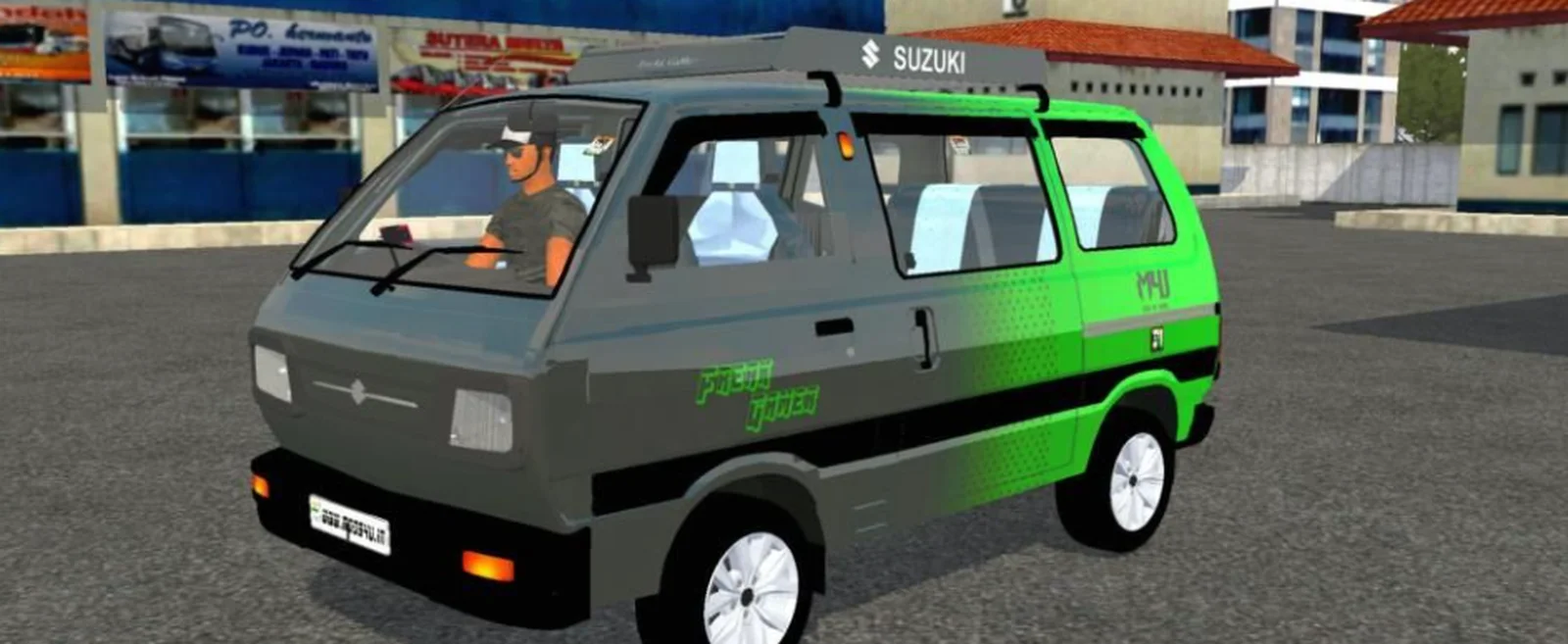
Screenshots
Mod Details
Description
Mod Features
- 🚐 Maruti Omni — Variant 2
- 🇮🇳 Classic Indian van design
- 🎮 Made for Bussin
- ⚙️ Custom vehicle setup
- 🛞 Smooth and enjoyable handling
- 💡 Functional lights
- 🎨 Detailed exterior and interior
- 🖥️ Optimized for in-game use
- 🔧 Version 1.0
Vehicle: Maruti Omni
Variant: 2
Version: V1.0
Game: Bussin
Category: Cars / Vans
About This Mod
Maruti Omni Mod — Variant 2 V1.0
Bring the iconic Maruti Omni to Bussin with Variant 2 V1.0 One of India's most recognizable compact vans, the Omni adds a classic and nostalgic touch to your Bussin garage.
This variant features a distinct design setup while keeping the familiar boxy shape and character that made the Maruti Omni a legendary vehicle on Indian roads. Whether you're taking it for a casual drive, exploring the map, or building an Indian vehicle collection, the Omni is a fun addition to Bussin.
Video Preview
How to Install Bussin Mods?
To install a mod in
Bus Simulator Indonesia/India (Bussid/ Bussin),
you generally need to download the mod file
(usually ending in
.bussimod
or
.bussidvehicle)
and move it into the game's designated
"Mods" folder using a file manager.
Step-by-Step Installation Guide
- Download the Mod: Find a mod you like (bus, truck, or car).
- Locate the File: Open a file manager app like ZArchiver and go to your Downloads folder to find the file.
-
Move the Mod File:
- Long-press the mod file and select Copy or Cut.
- Navigate to the internal storage folder named BUSSID.
- Open the Mods folder inside the BUSSID directory.
- Paste the file here.
-
Activate in Game:
- Open Bus Simulator Indonesia/India.
- Go to the MOD section on the main menu.
- If the mod isn't showing, tap Import and select the file from your storage.
- Use the Mod: Go to your Garage, scroll through your vehicles until you find the new mod, and tap Use.
Download Ready
Troubleshooting Tips
- Make sure the downloaded file is a supported BUSSID mod file.
- If the mod does not appear, check that it is inside the correct Mods folder.
- Restart the game after moving or importing the mod.
Comments
0 comments
You need to be logged in to post a comment.
Sign In to Comment